
AdriaHost • illustrated guide
Connect AI to your email, website or server
Open the section for your service. Follow the numbers, enter only your own details and check the result after each step.
You do not need to know technical terms. Each step explains what to do beside the English button names. Click any image to enlarge it.
Addresses such as info@mojafirma.rs are examples, not your account details. Enter your own details. If a button has a different name in your version, reply to our email and tell us the step number.
1. Connect my email
Have your business email address and its mailbox password ready. This is the password you use for webmail, not your AdriaHost client-area password.
First, open the section for your app
I use Codex / ChatGPT desktop
1Open settings
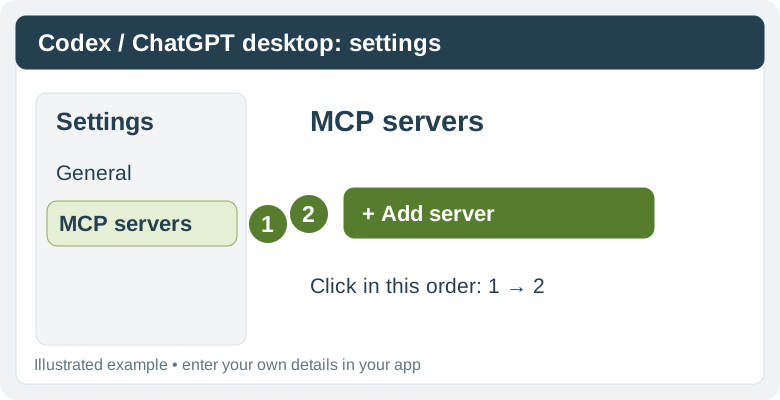
Open Codex, or the ChatGPT desktop app in which you use Codex. Click Settings, then MCP servers, then Add server.
2Enter these three details
Enter AdriaHost Mail as the name. Select Streamable HTTP as the connection type. Paste the entire address below into URL.
https://mcp.adriahost.com/mcp
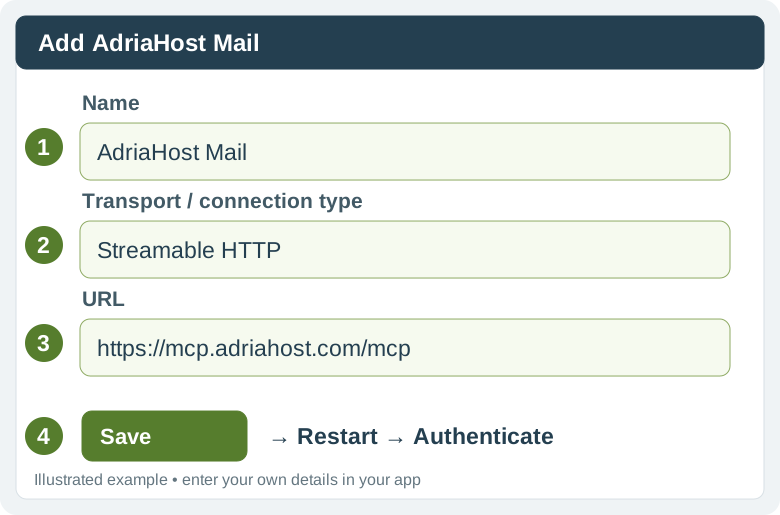
Click Save, then Restart if the app shows it. Beside AdriaHost Mail, click Authenticate. The AdriaHost form shown in the next step will open.
I use Claude
1Add AdriaHost Mail to Claude
In Claude, open Customize → Connectors. Select + Add → Add custom connector. If your version shows Custom → Web, choose that option.
The name is AdriaHost Mail and the server address is:
https://mcp.adriahost.com/mcp
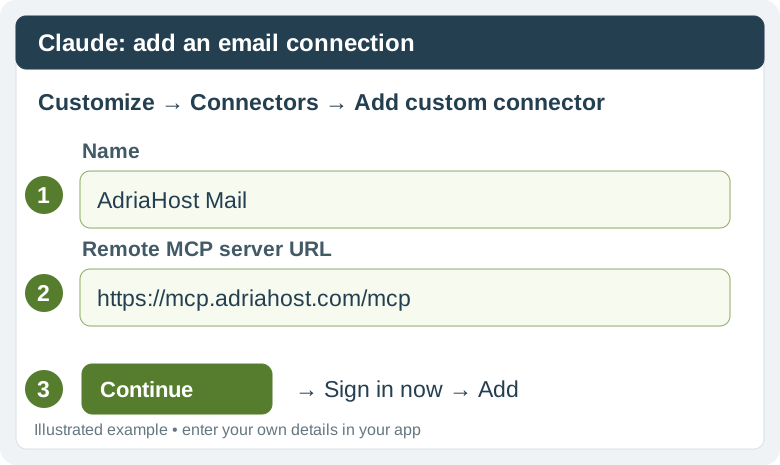
Click Continue. When prompted, select Sign in now, then finish with Add or Connect. If you see an OAuth client choice, use Register automatically for this connection. In a Team/Enterprise account, the owner must first add the connector.
Continue to the AdriaHost form below.
I use ChatGPT in a browser
1Check whether the plugin is available
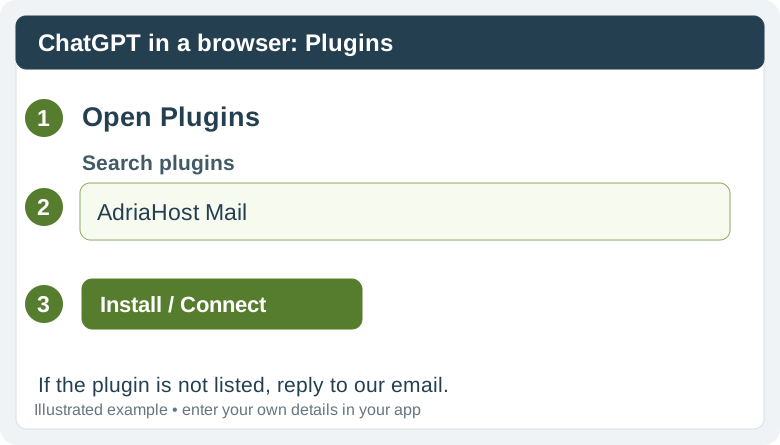
In ChatGPT in your browser, open Plugins and search for AdriaHost Mail. If it appears, open it, choose Install, then Connect, and continue to the AdriaHost form below.
3Connect your mailbox
The page that opens should belong to mcp.adriahost.com. Enter your full email address, such as info@mojafirma.rs, in Email address. Enter that mailbox’s password in Password.

First click Test connection. When the test succeeds, click Connect. Read the permissions shown: reading and sending or changing messages may be authorized separately.
If the test fails, open Advanced settings and enter the exact mail server name provided by support in Server hostname. Do not guess a server or IP address. If you do not have this detail, reply to our email.
4Check that it works
Return to your AI app and start a new conversation. If the app asks you to choose tools, enable AdriaHost Mail. Paste:
Show the connected email address and the subjects of the last five messages. Do not send, delete or change any messages.
2. Connect my website on web hosting
1Prepare a copy of your website
Open moj.adriahost.rs, sign in and open your hosting service. Open its control panel.
Make a backup of the files and database in the panel, or ask support to confirm an existing backup. For testing, use a separate folder on your computer, such as My-website-AI.
2Prepare a separate file-transfer account
In cPanel, open FTP Accounts; in DirectAdmin, open FTP Management. Select Add FTP Account / Create FTP Account, enter the new account name, its password and the confirmed website folder. Click Create / Add. If you do not know which folder to choose, send your domain to support and ask for these details.
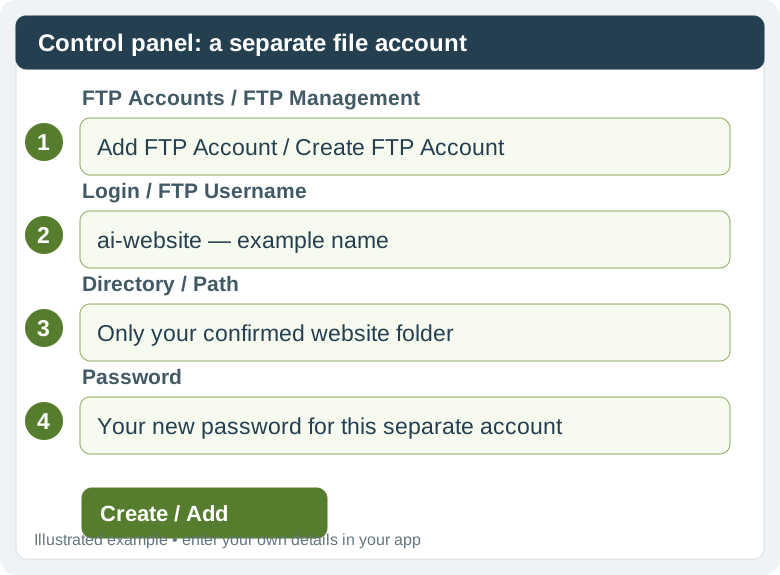
If the panel shows Domain, select your domain. Repeat the new password in Password (Again). For Quota, leave the suggested value if it is enough for your website files, or ask support for a recommendation.
You need the server hostname, port, FTP username, password and website folder. Save the full username shown after creating the account, including the domain if it is part of the name. Get these details from your panel or support; your website domain is not always the login server hostname.
3Enter the details in FileZilla
Open FileZilla Client. Click File → Site Manager → New site. Give the connection a name, such as “My AdriaHost”.
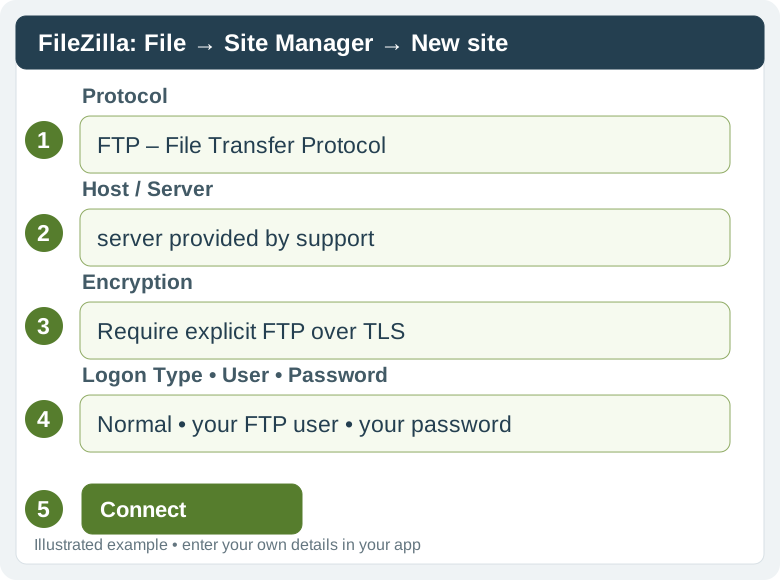
Select FTP – File Transfer Protocol, and Require explicit FTP over TLS for encryption. Enter the server and port provided by support. Select Normal for Logon Type, then enter the separate account’s username and password. Click Connect.
If a certificate check appears, the name should match your server and the certificate must be valid. If you see a warning, stop connecting and contact support.
4Download the files, then open the folder
In FileZilla, your computer is on the left and hosting is on the right. Open My-website-AI on the left. Open the confirmed website folder on the right. Select the files on the right, right-click and choose Download.
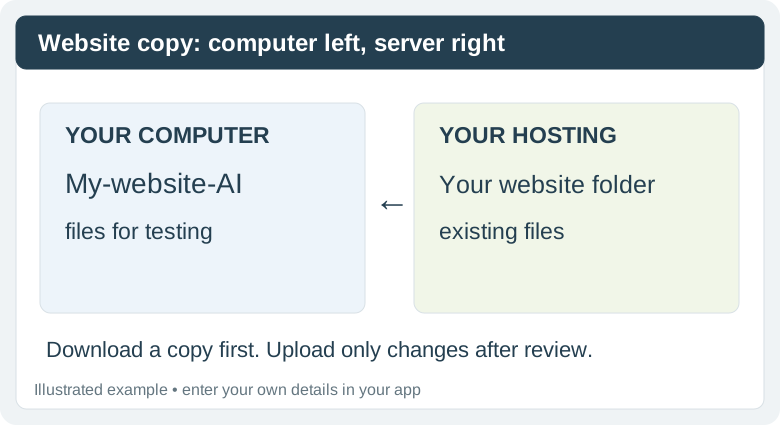
Wait for the transfer to finish. In Codex, select Add project / Open folder, or the equivalent folder-opening option, and choose My-website-AI. In Claude Code, select that project’s local folder.
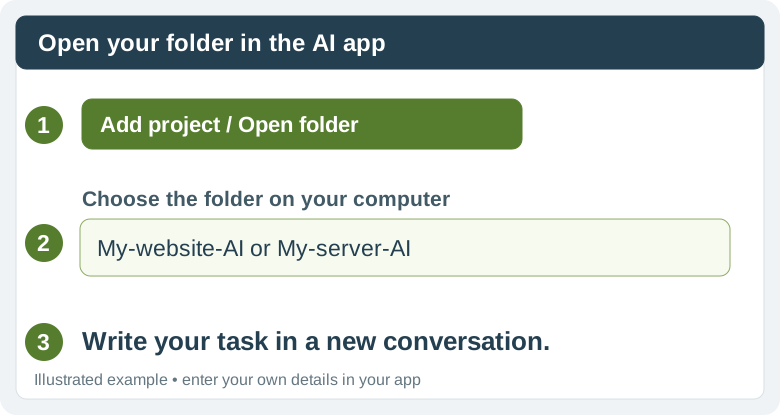
Work only on this copy of the website. First review the files and make a backup. I want to change: [describe the change here]. Preserve URLs and SEO data. Show me the result first; do not publish it yourself.
5Review, then upload only the change
Open the prepared preview and check the text, mobile layout, links and forms. Once you approve the change, select the required changed files on the left in FileZilla and Upload them to the same matching folder on the right. Do not overwrite the live website with an entire folder without checking.
WordPress text, menus, plugins and the database often also require separate WordPress access or another agreed workflow. File transfers alone do not change the database. Support can confirm the right access for your task.
ChatGPT in a browser: you can provide selected files and ask it to prepare a change. Use the desktop tool described here for working with a local folder and uploading files; a regular conversation has no access to your hosting.
3. Connect my VPS or dedicated server
1Prepare your server details
Open the message containing your VPS/dedicated server details or the reply from support. Have the server hostname, SSH port, separate username and project folder ready. If anything is missing, reply to the email containing this guide and ask for that exact detail.
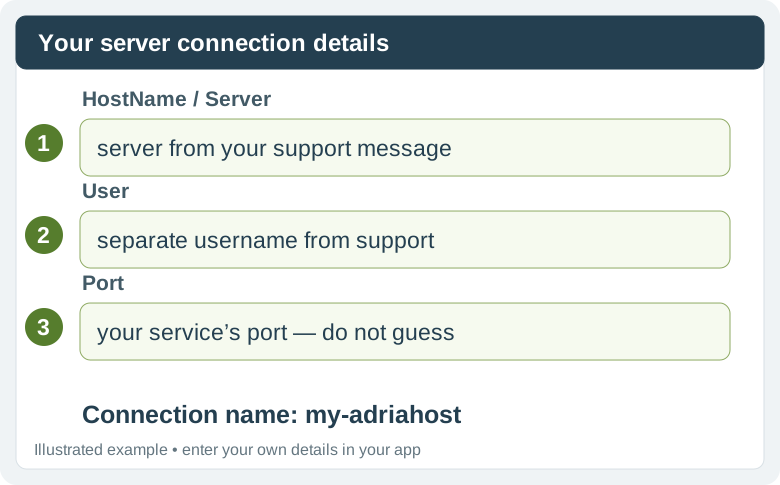
For a Windows server, support or your administrator must first confirm that SSH/SFTP is enabled and an appropriate account is ready. An RDP login is not an SSH connection. For a Linux VPS, you need the same server, port and username details.
2Create a key on your computer
On a Mac: press ⌘ + Space, type Terminal and press Enter. Copy the following two lines, paste them into Terminal and press Enter.
mkdir -p ~/.ssh
ssh-keygen -t ed25519 -f ~/.ssh/adriahost_ai -C "AdriaHost AI access"
On Windows: open Start, type PowerShell and open it. Paste these two lines and press Enter.
New-Item -ItemType Directory -Force "$env:USERPROFILE\.ssh" | Out-Null
ssh-keygen -t ed25519 -f "$env:USERPROFILE\.ssh\adriahost_ai" -C "AdriaHost AI access"
When asked for a passphrase, you can enter one twice. For a separate automated key without a passphrase, press Enter twice; the private file must then remain only on your protected computer. If it says the file already exists, answer n and ask for help; do not overwrite an existing key.
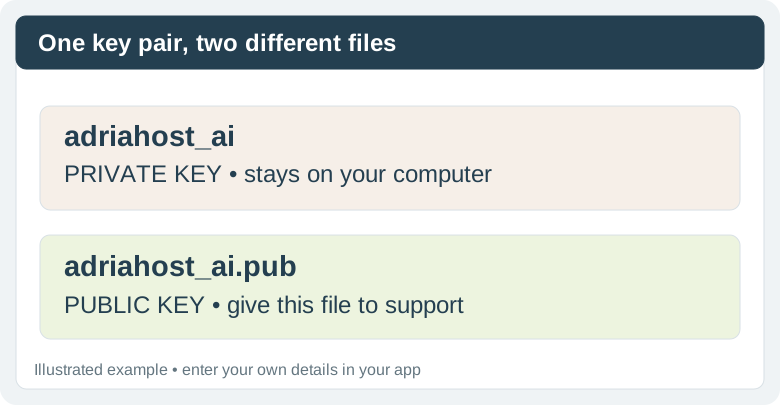
If you set a passphrase, add the key to your system’s SSH agent before working. If the app cannot ask for the passphrase or the agent is not working, contact support; do not send the passphrase in a conversation.
3Give support only the public key
Show the public key in the same Terminal/PowerShell window:
cat ~/.ssh/adriahost_ai.pub
The same command works in Windows PowerShell. Copy the entire line beginning with ssh-ed25519. Reply to support: “Please add this public key to my separate account for domain/server ___, limited to the required task, until ___.” Paste the public key line.
Wait for confirmation that the key has been added. If your server has cPanel SSH Access → Manage SSH Keys → Import Key, you can import only the Public Key, then choose Manage → Authorize for the previously confirmed SSH account. Leave the private key field empty.
4Save the connection with a simple name
In Codex, open a separate local folder/project, such as My-server-AI. Copy the message below. Before sending it, replace all three parts in square brackets with the details provided by support.
On this computer, add a new SSH connection to my existing SSH config.
Connection name: my-adriahost
Server: [enter the server provided by support]
Port: [enter the port provided by support]
User: [enter the separate username]
Private key: ~/.ssh/adriahost_ai
Use only this key and ForwardAgent no. Preserve existing connections. Do not print the private key or change the server.
The assistant should save the new connection without deleting existing ones. This message does not contain a password or the contents of a private key.
5Test the login
Type this in your Terminal/PowerShell window:
ssh my-adriahost
When connecting for the first time, compare the server fingerprint shown with the one provided by support. Only if it matches, type yes and press Enter. If it does not match, stop and contact support.
After a successful login, type exit and press Enter to return to your computer. If it asks for a server password even though the key has been added, ask support to check the account, port and key.
6Give it a safe first task
Return to your My-server-AI project in Codex or local Claude Code. Send:
Connect through the SSH connection my-adriahost. Read the server name, operating system and the project folder I specified. Do not change anything. Show me the connection result.
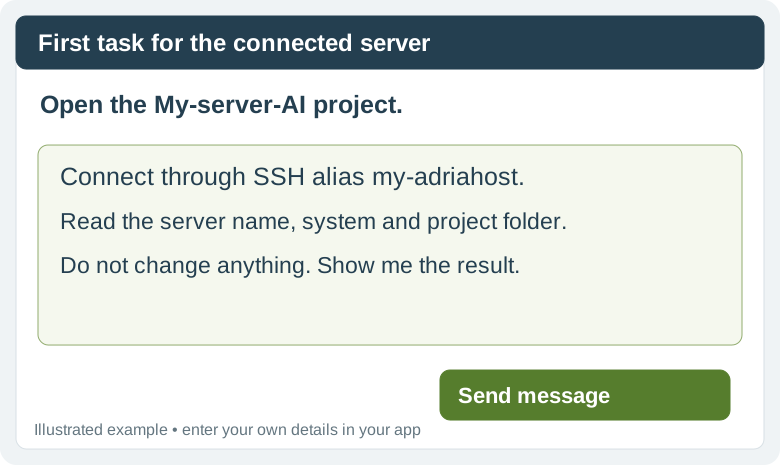
If the app asks for permission to connect, check that it names your host my-adriahost and requests a review without changes, then approve that request.
I want a separate SSH session in Claude desktop
In the Code section, open the environment selector below the message field, then New environment → SSH → Host → Add SSH connection…. For Name, enter “My AdriaHost”; for SSH host, enter the prepared alias my-adriahost. When it uses your SSH config, it can read the port and key from there.
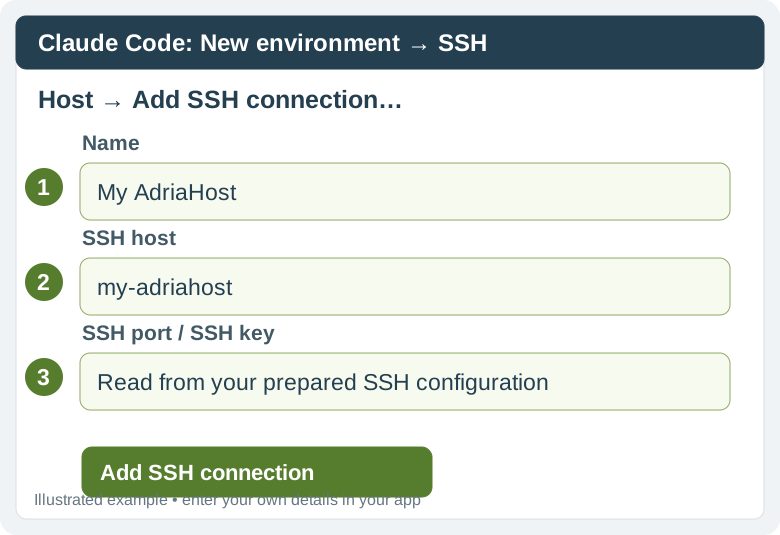
Save the connection, select the confirmed folder on the server and click Create environment. Claude may ask to install its helper on the server. Check with your administrator that the account and server support this.
I want a remote project through Codex Connections
This is an additional way to work; it is not required for the local-project procedure above. For a remote project, the administrator must first prepare a supported Codex environment and sign-in on the server.
In the app, open Settings → Connections, add or enable the SSH host and select the project folder on the server.

ChatGPT in a browser: a regular conversation cannot access the SSH key on your computer. Use the desktop/Codex workflow described here, or a separate connection confirmed by support for your account.
↑ Back to service selectionWhen I finish: how to revoke access
1Remove the separate connection when finished
For email, remove the connection in your AI app and revoke its permission through the available connection controls. For hosting, remove the separate FTP account. For a server, ask for this exact public key to be removed or for the separately approved access to expire.
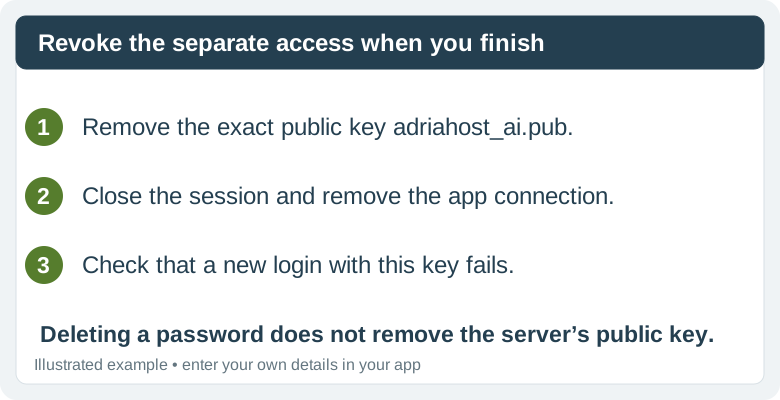
Do not remove the main administrator account. Deleting a file containing a temporary password does not revoke a key already added to the server.
If the administrator uses a temporary initial password
Prefer the procedure above: support adds your public key, so the AI does not need your server password.
If you use a temporary account, agree on its exact duration and permitted task. Enter the password yourself in a secure login, never in a conversation or email. If a specific helper needs a local file, support must tell you its exact location and format; do not create an arbitrary credentials file in your website or cloud folder.
A program allowed to read that file can see the password. Only after key-based login has been verified in a new session should you remove the temporary password/account as agreed with the administrator. The key must be revoked separately.
Reply to the email containing this guide. Include the domain, app and step number, such as “mojafirma.rs, Codex, email — step 3”. You can attach an error screenshot with no passwords or private keys. Support will help you continue.
Contact AdriaHost support →The AI app and any required subscription are separate. Available actions depend on your plan, app and authorized access. Submitting a form does not itself grant server access.
Checked against: OpenAI Docs — MCP settings, OpenAI Docs — SSH, Claude — email connections, Claude Code — SSH, cPanel — public keys, cPanel — FTP accounts, FileZilla — connection fields and AdriaHost — SSH availability. Images marked as illustrations explain the fields; they do not show real login details.